Passkeys
Passkeys are a modern, phishing-resistant replacement for passwords. Instead of remembering and typing a password, you authenticate using your device's built-in security - like a fingerprint, face scan, or PIN - or with a physical security key. Passkeys are built on the WebAuthn standard, making them both more secure and more convenient than traditional passwords.
Passkeys Require Valid SSL Certificates
WebAuthn (the protocol behind passkeys) only works in fully trusted/secure contexts - it will fail if the client's browser does not trust the certificates presented by your Crafty Controller instance. There is an exception for a base_url of localhost - but this only works if you're accessing Crafty via that URL; it cannot work remotely.
What are Passkeys?
Passkeys use public-key cryptography. When you register a passkey, your device creates a unique key pair - the private key stays securely on your device (or synced via your password manager), while only the public key is stored on the server. This means there's no shared secret that can be stolen or phished.
Learn more:
- Passkeys.dev - Industry resource from the FIDO Alliance
- FIDO Alliance - What are Passkeys?
- W3C WebAuthn Specification - The underlying standard
- WebAuthn Guide - Developer-friendly explainer
Prerequisites 4.8.0
- Ensure Crafty Controller is at version 4.8.0 or later.
- HTTPS with a valid SSL certificate is required. WebAuthn only works in secure contexts - self-signed certificates may work for testing but a trusted certificate is strongly recommended for production.
- The
base_urlsetting must be correctly configured in Crafty (this determines the Relying Party ID for WebAuthn). - A compatible modern browser (Chrome, Firefox, Safari, Edge).
- An authenticator device - either built-in (Windows Hello, Touch ID, Face ID, Android biometrics) or external (security key like YubiKey). Most modern smartphones can also act as an authenticator device - Crafty will generate QR codes that can be scanned to create and retrieve passkeys on your phone.
Types of Passkeys
Crafty supports all standard WebAuthn authenticator types:
| Type | Examples | Description |
|---|---|---|
| Platform authenticators | Windows Hello, Touch ID, Face ID, Android biometrics | Built into your device. Fast and convenient, but tied to that specific device. |
| Roaming authenticators (Security keys) | YubiKey, Google Titan Key, Feitian | Physical keys that work across multiple devices via USB, NFC, or Bluetooth. |
| Cloud-synced passkeys | iCloud Keychain, Google Password Manager, 1Password, Bitwarden | Passkeys that sync across your devices through your password manager or platform account. |
Cloud backup indicator
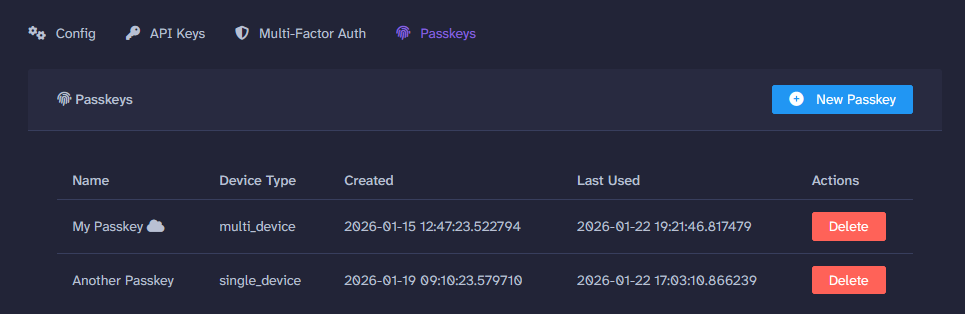
In the passkey management screen, passkeys that are backed up to the cloud are shown with a cloud icon (☁️). This helps you identify which passkeys will be available if you lose access to a specific device.
Enabling Passkey Authentication (Admin)
Before users can register passkeys, an administrator must enable the feature globally.
Accessing Passkey Settings
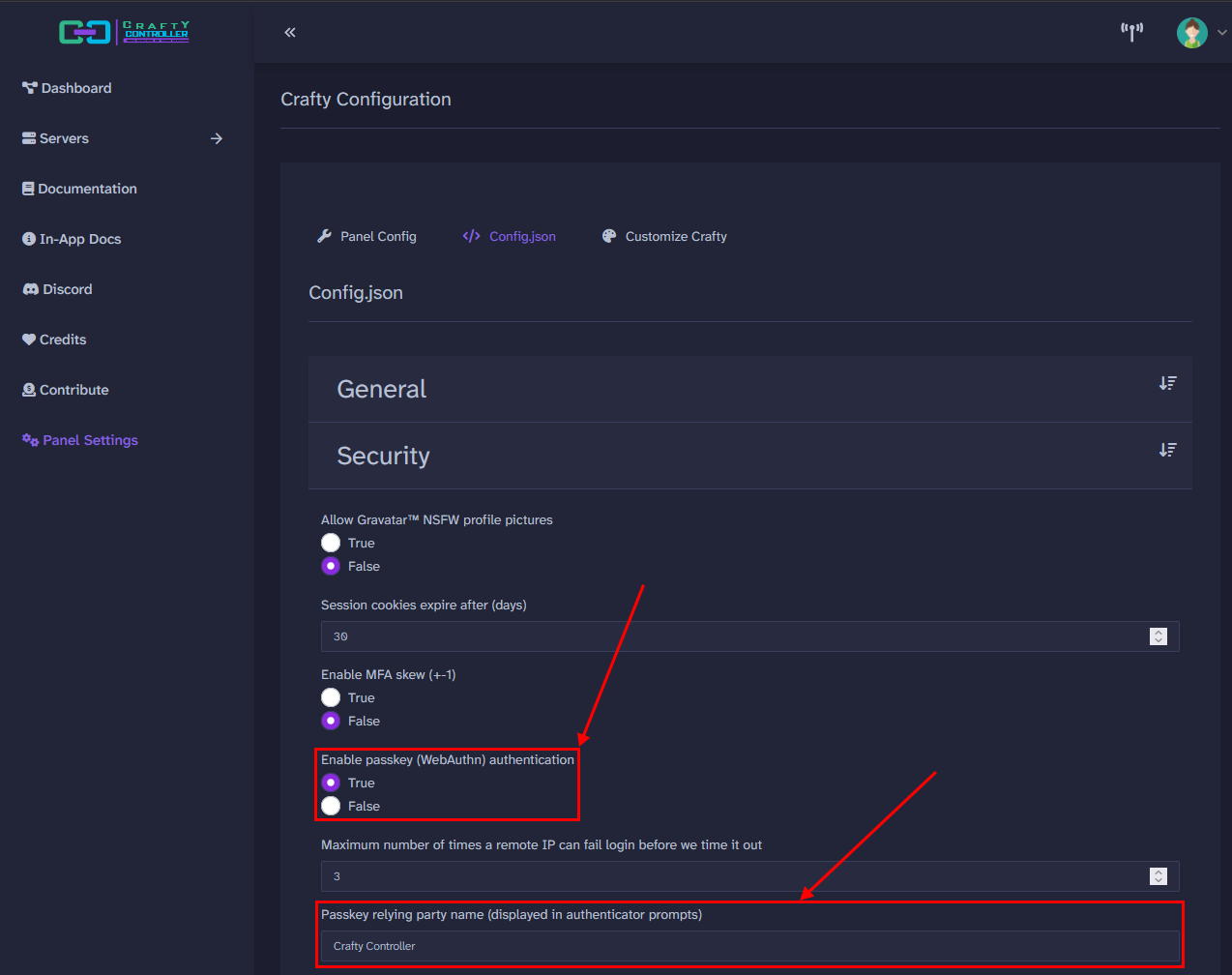
- Click "Panel Settings ⚙️" on the left side navigation (hamburger menu on mobile).
- Select the "config.json" tab.
- Navigate to the Security section.
Configuration Options
| Setting | Description |
|---|---|
| Enable Passkey Auth | Toggle to enable or disable passkey authentication globally. |
| Passkey RP Name | The "Relying Party" name shown to users during passkey registration (defaults to "Crafty Controller"). |
Base URL Configuration
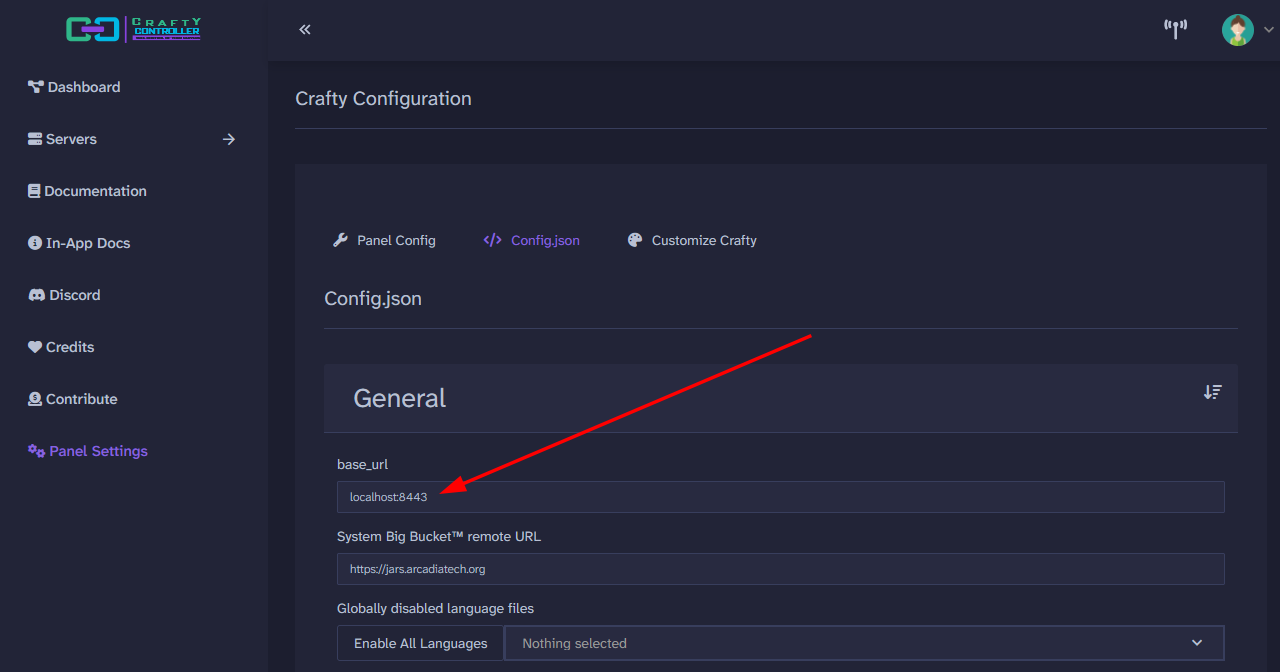
The base_url setting is critical for passkeys to work correctly. WebAuthn uses the hostname from this URL as the Relying Party ID. If your base_url doesn't match how users access Crafty, passkey registration and authentication will fail.
Setting the Base URL
The base_url is found in Panel Settings > config.json > General section. Ensure it matches the URL users use to access Crafty (e.g., https://crafty.example.com).
Registering a Passkey
Once passkey authentication is enabled, users can register their own passkeys.
Accessing Passkey Settings
- Click your user profile in the top right corner (top left on mobile).
- Click "Account Settings".
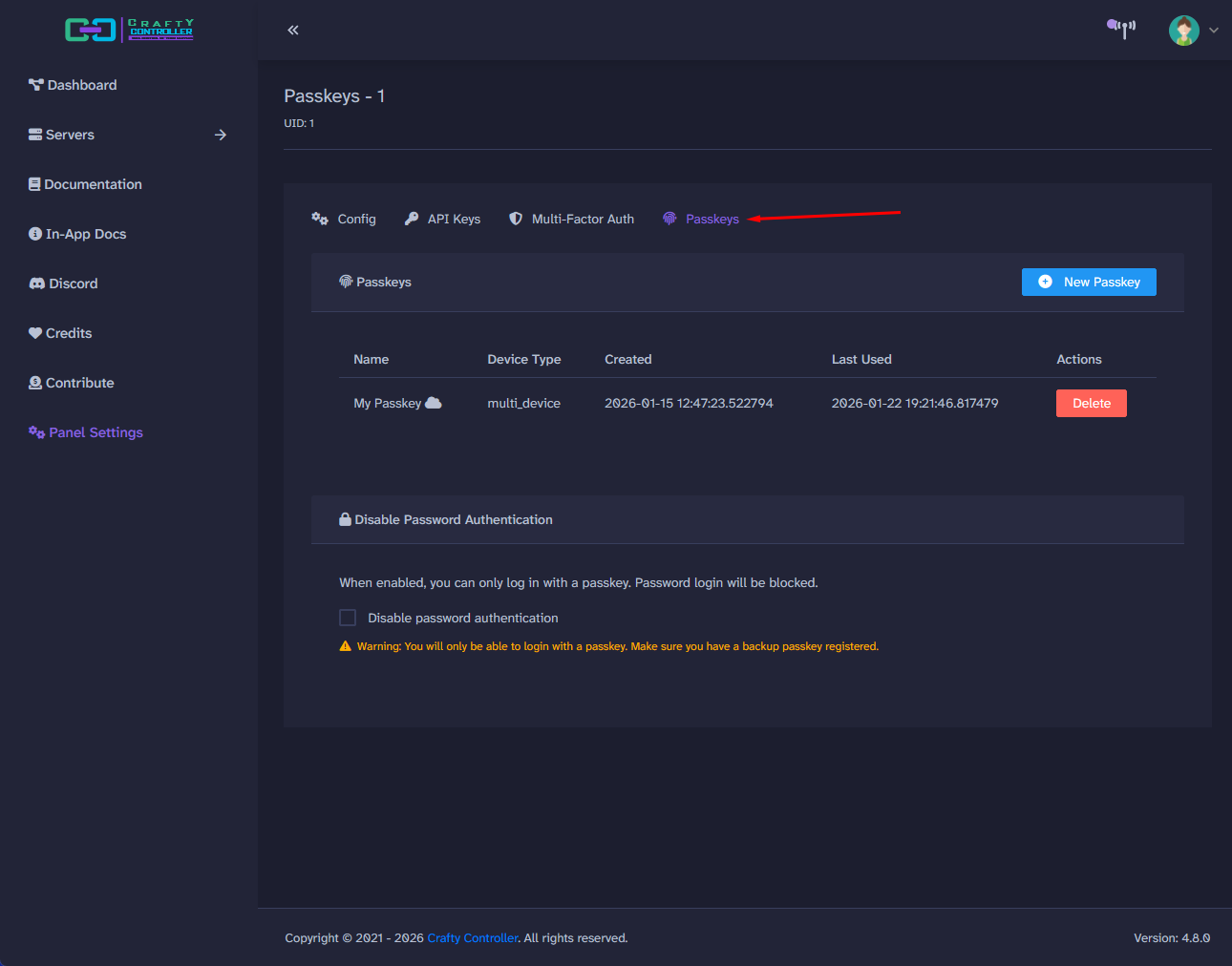
- Click the "Passkeys" tab.
Creating a New Passkey
- Click the "New Passkey" button.
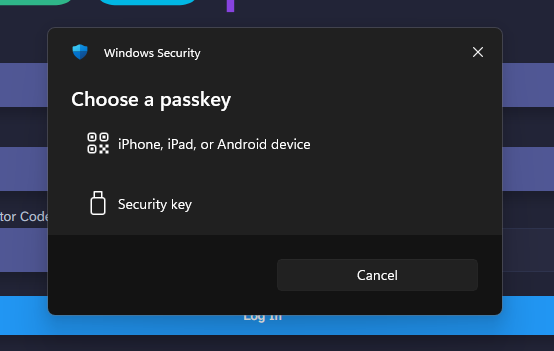
- Your browser or operating system will prompt you to choose an authenticator - this could be a fingerprint reader, face recognition, PIN, or security key.
- Complete the authentication on your device.
- Give your passkey a friendly name (e.g., "MacBook Touch ID" or "YubiKey 5").
- Your passkey now appears in the list.
Register multiple passkeys
For redundancy, consider registering passkeys on multiple devices or keeping a backup security key. If you lose access to one device, you'll still be able to log in with another.
Using Passkeys to Log In
Once you have a passkey registered, you can use it to log in quickly and securely.
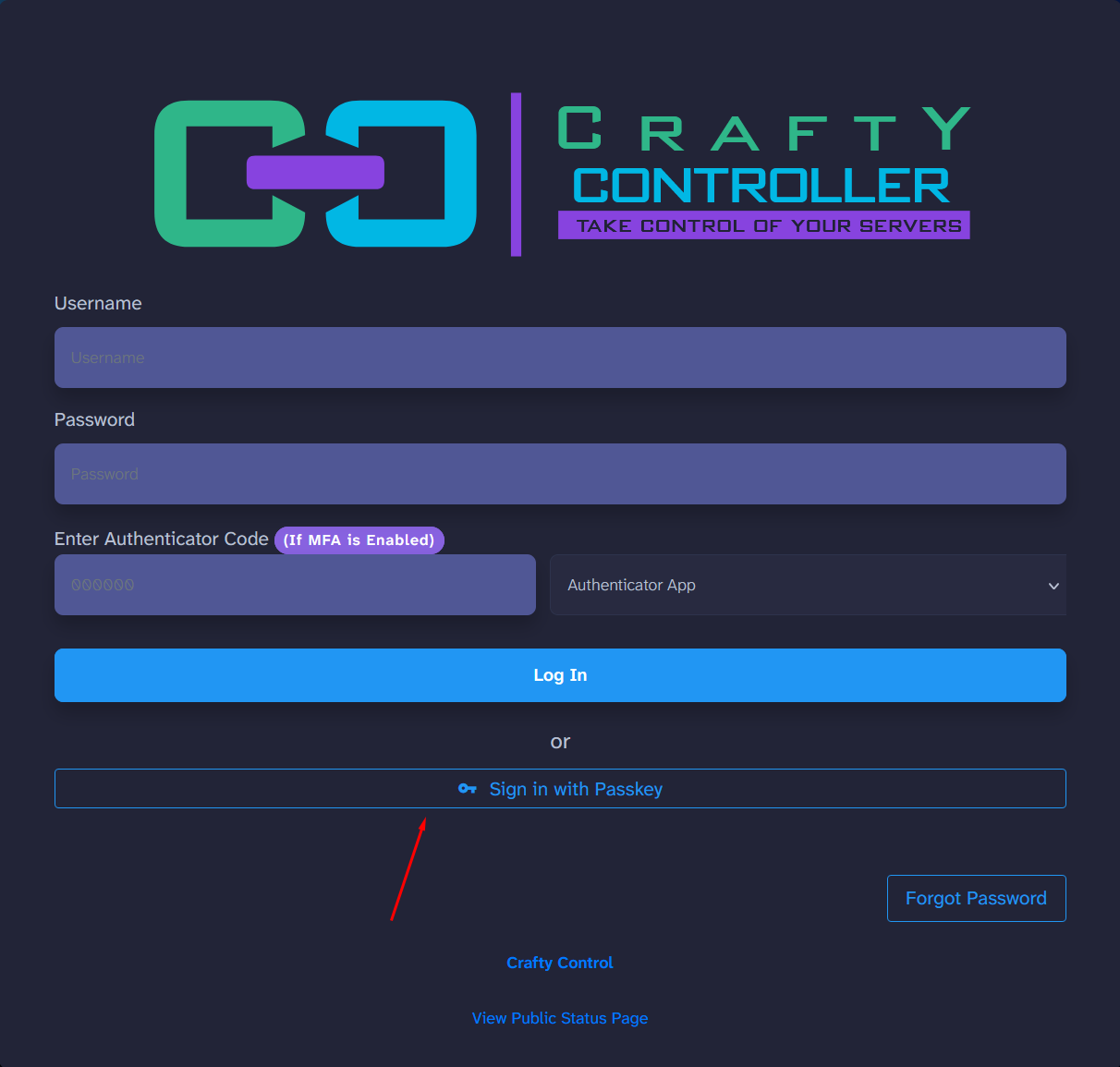
- On the Crafty login page, click "Sign in with Passkey".
- Optionally, enter your username - this helps if you have passkeys for multiple accounts or want to filter which passkey is used.
- Your browser will prompt you to authenticate using your passkey (fingerprint, face, PIN, or security key).
- Complete the authentication on your device.
- You're logged in!
Passkeys and MFA
Passkeys are inherently two-factor: they combine something you have (the device or key) with something you are (biometric) or know (PIN). When using a passkey to log in, you don't need to enter a separate TOTP code.
Going Fully Passwordless
If you want to use only passkeys and disable password login entirely for your account, you can enable passwordless mode.
Enabling Passwordless Mode
- Navigate to Account Settings > Passkeys tab.
- Ensure you have at least one passkey registered.
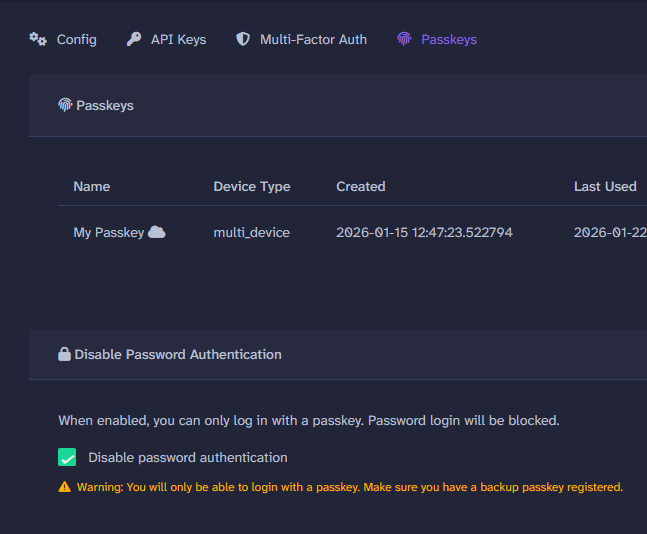
- Enable the "Disable Password Authentication" toggle.
Important: Account Recovery
Once passwordless mode is enabled, you cannot log in with a password - only passkeys will work. Make sure you have:
- Multiple passkeys registered (on different devices or a backup security key)
- Access to an administrator who can help if you're locked out
If you lose all your passkeys and have no backup method, you'll need an administrator to reset your account.
What Happens When Password Login is Disabled
If someone tries to log in with your username and password after you've enabled passwordless mode, they'll receive an error indicating that password authentication is disabled for your account. They must use a passkey instead.
Managing Passkeys
Viewing Your Passkeys
The passkeys tab shows all your registered passkeys with useful information:
| Column | Description |
|---|---|
| Name | The friendly name you gave the passkey. |
| Type | Whether it's a platform authenticator or security key. |
| Created | When the passkey was registered. |
| Last Used | When the passkey was last used to authenticate. |
| Backed Up | Cloud icon (☁️) indicates the passkey is synced/backed up. |
Deleting a Passkey
- Click the delete button next to any passkey to remove it.
- You'll be asked to confirm before deletion.
- If you delete your last passkey while passwordless mode is enabled, the "Disable Password Authentication" toggle will be automatically turned off to prevent account lockout.
Troubleshooting
| Error | Cause | Solution |
|---|---|---|
| "Insecure context" or "SecurityError" | Not using HTTPS, or SSL certificate is not trusted by the browser. | Ensure Crafty is accessed via HTTPS with a valid, trusted SSL certificate. |
| "NotAllowedError" or authentication cancelled | User cancelled the authenticator prompt, or the request timed out. | Try again and complete the authentication promptly. |
| Passkey not appearing during login | Username not entered, or no passkeys registered for that user. | Enter your username before clicking "Sign in with Passkey", or register a passkey first. |
| "NotSupportedError" | Browser doesn't support WebAuthn. | Update to a modern browser (Chrome, Firefox, Safari, Edge). |
| Registration fails silently | base_url misconfigured, causing Relying Party ID mismatch. |
Check that base_url in Crafty settings matches how you access Crafty. |
Passkey FAQs
- "Can I use both a password and passkeys?"
Yes! By default, both authentication methods are available. You can log in with either your password (plus TOTP if enabled) or a passkey. - "What happens if I lose my passkey device?"
If you have other passkeys registered (on another device or a backup security key), use one of those. If you've lost all your passkeys, contact your Crafty administrator to regain access. - "Do passkeys work across devices?"
It depends on the type. Platform authenticators (like Touch ID) are device-specific. Cloud-synced passkeys (iCloud Keychain, Google Password Manager) automatically sync across your devices. Security keys physically move between devices. - "Is my fingerprint or face data sent to Crafty?"
No. Biometric data never leaves your device. The authenticator only confirms to Crafty that you successfully verified - it doesn't share how. - "When should I enter my username for logging in with a passkey?"
Entering your username is optional but helpful. It tells the browser which passkeys to offer, especially if you have multiple accounts. Without a username, discoverable credentials (resident keys) are used if available.
Additional Resources
- Can I Use: WebAuthn - Browser support table
- Passkeys.dev - Comprehensive passkey resource
- FIDO Alliance - The organization behind FIDO2/WebAuthn standards
Links to Common Security Key Providers
| Vendor | URL |
|---|---|
| Yubico (YubiKey) | yubico.com |
| Google Titan | store.google.com |
| Feitian | ftsafe.com |
| SoloKeys | solokeys.com |